> ## Documentation Index
> Fetch the complete documentation index at: https://docs.dojima.foundation/llms.txt
> Use this file to discover all available pages before exploring further.
# Deployment
## Overview
The **XChain Connections** flow allows users to deploy cross-chain projects using a templated approach, ensuring all required configurations and inputs are completed before deployment.
***
### Steps to Deploy a Cross-Chain Project
1. **Head to XChain Connections**
* After creating a new project or select from templates or selecting from the projects, the user is automatically redirected to the **XChain Connections** page to manage and deploy the project.
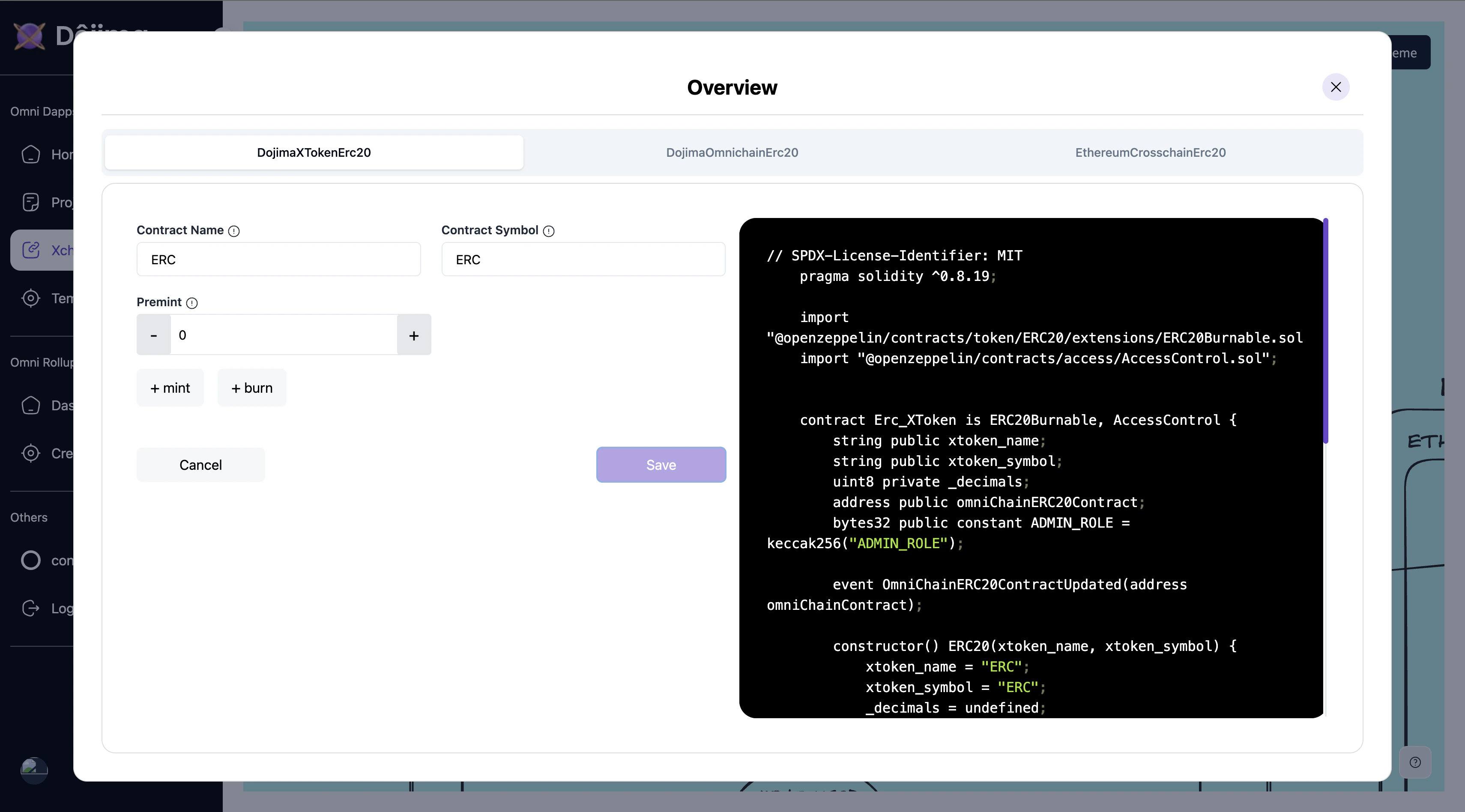
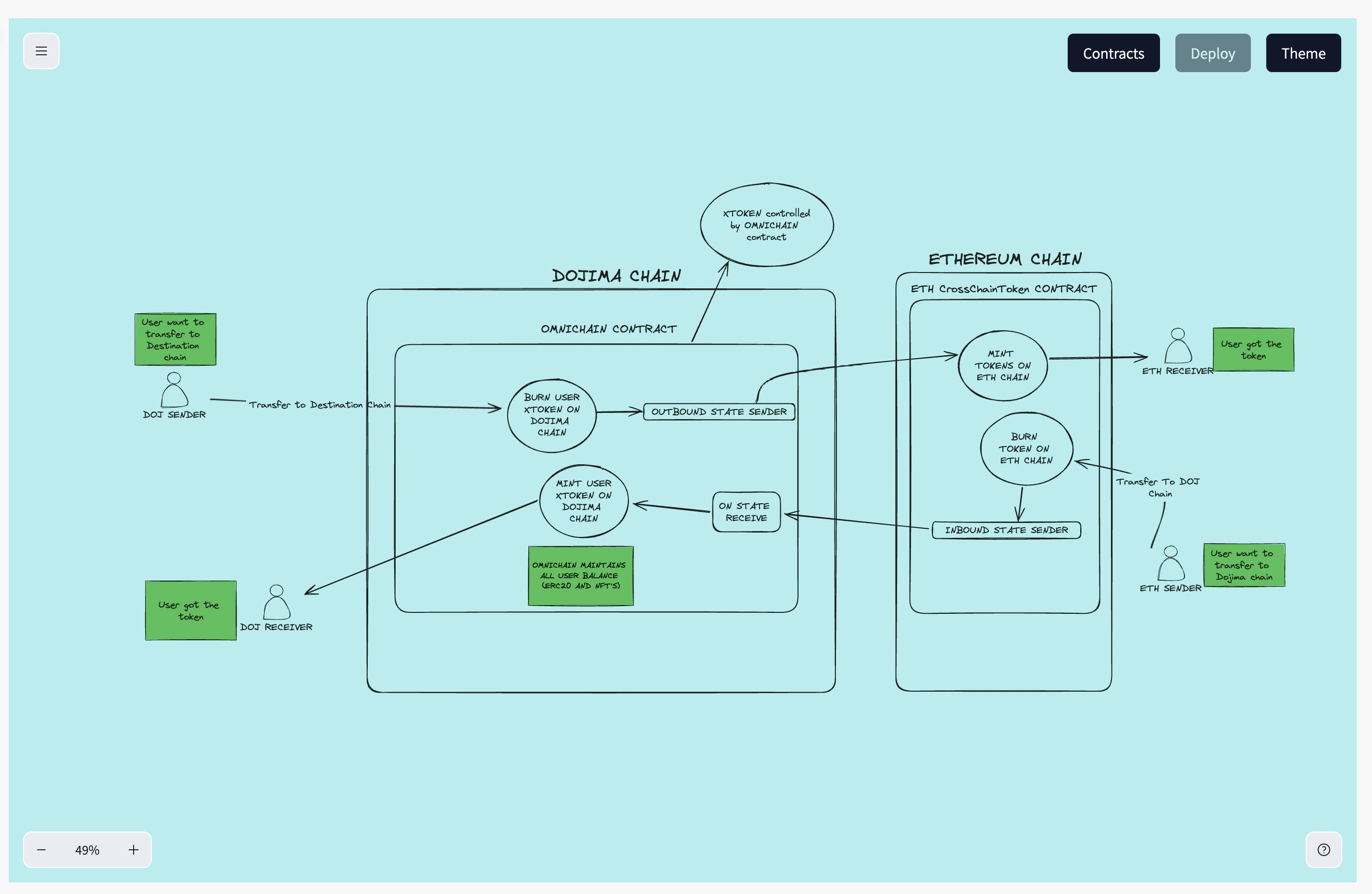 2. **Access Contracts**
* In the **XChain Connections** page, head to **Contracts** located at the top-right corner.
* A popup appears, prompting the user to enter specific inputs required for the cross-chain template deployment.
2. **Access Contracts**
* In the **XChain Connections** page, head to **Contracts** located at the top-right corner.
* A popup appears, prompting the user to enter specific inputs required for the cross-chain template deployment.
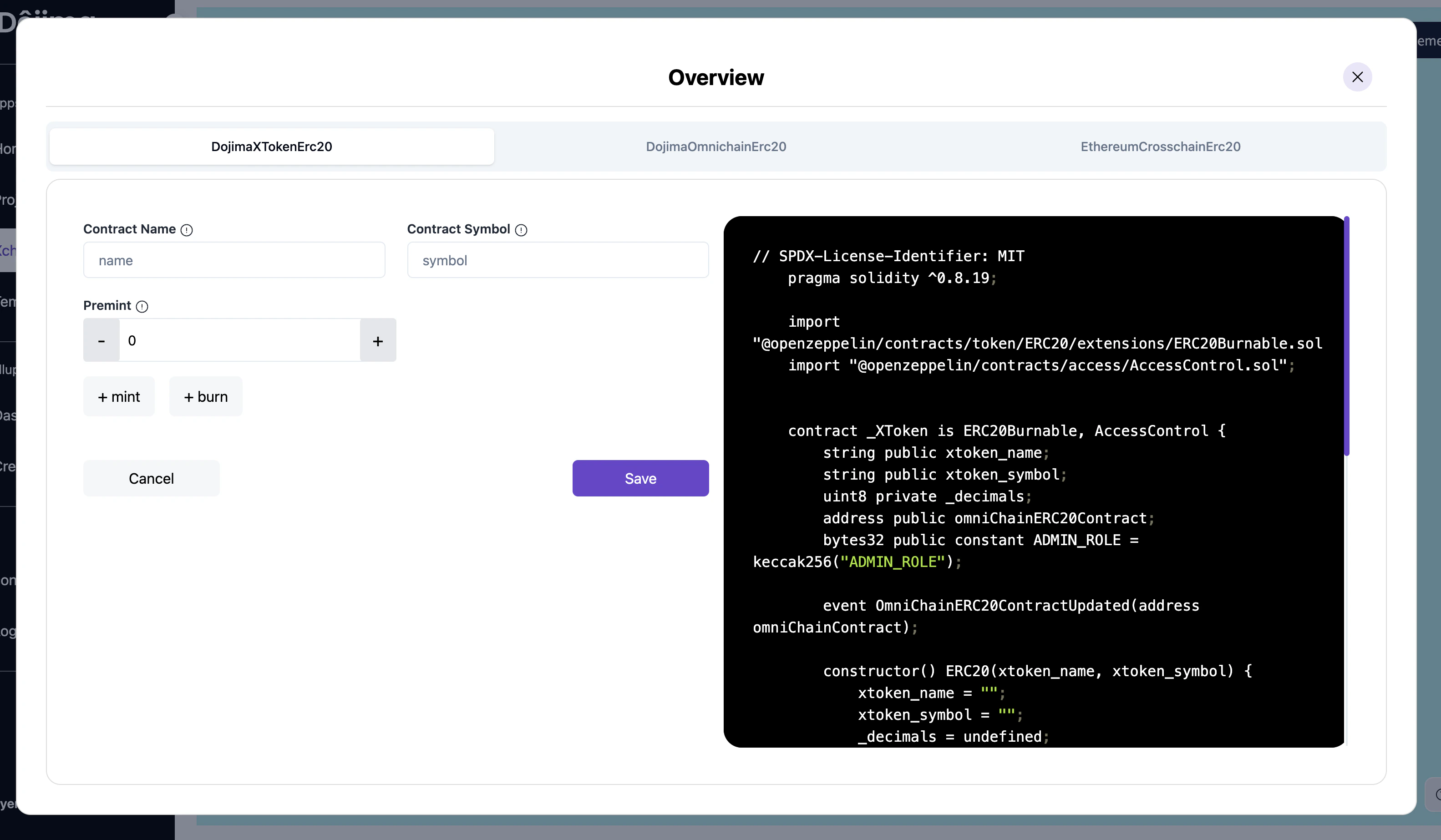 3. **Enter Input Details**
* The user is asked to fill in all required fields in the popup.
* **Important**: Ensure all inputs are correctly and consistently filled out before proceeding.
3. **Enter Input Details**
* The user is asked to fill in all required fields in the popup.
* **Important**: Ensure all inputs are correctly and consistently filled out before proceeding.
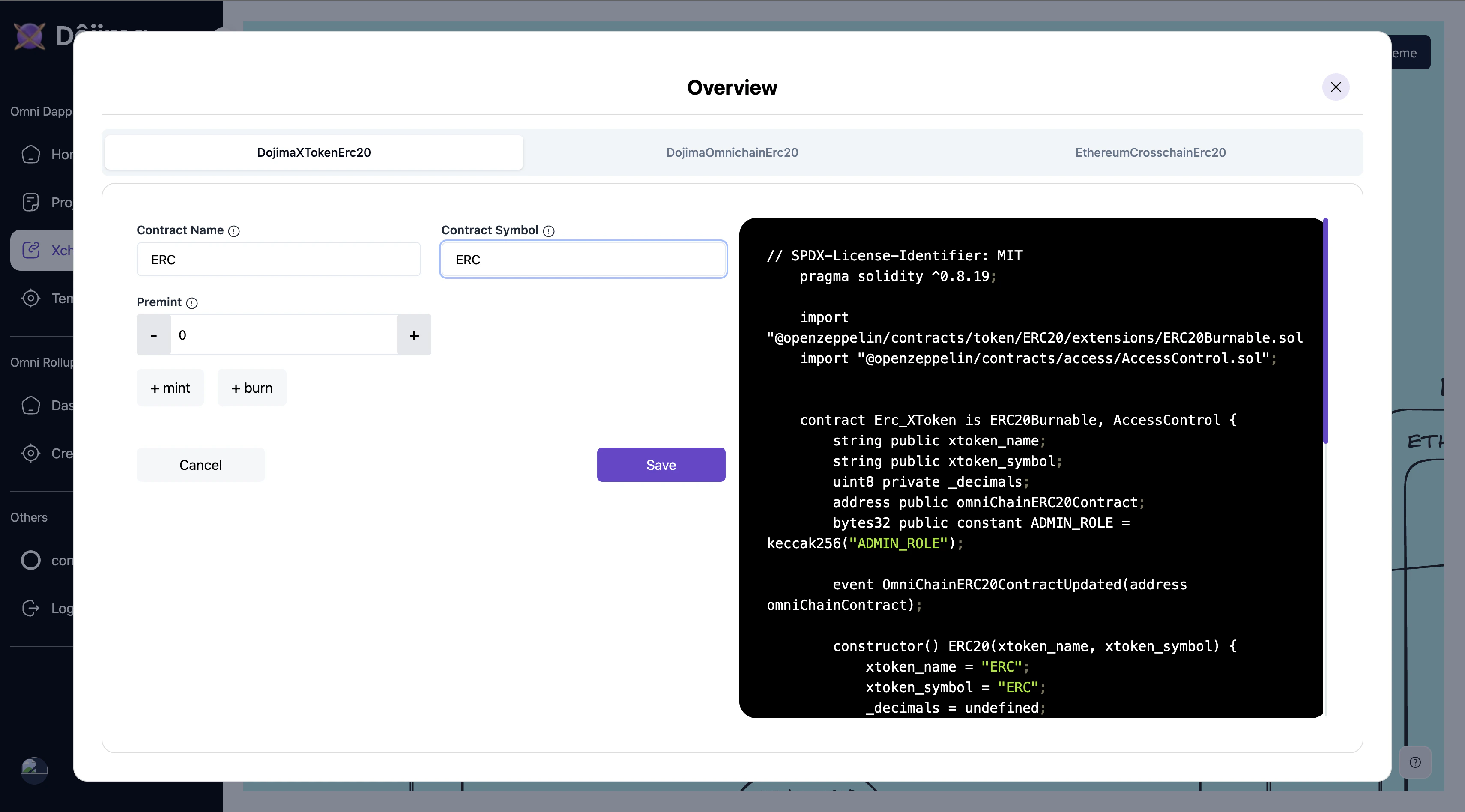 4. **Save Details**
* Before moving to the next step, the user clicks **Save** to store the input details.
4. **Save Details**
* Before moving to the next step, the user clicks **Save** to store the input details.
 5. **Complete All Steps**
* The user follows any remaining steps within the popup to complete the configuration.
* Once all steps are finalized, the user closes the popup.
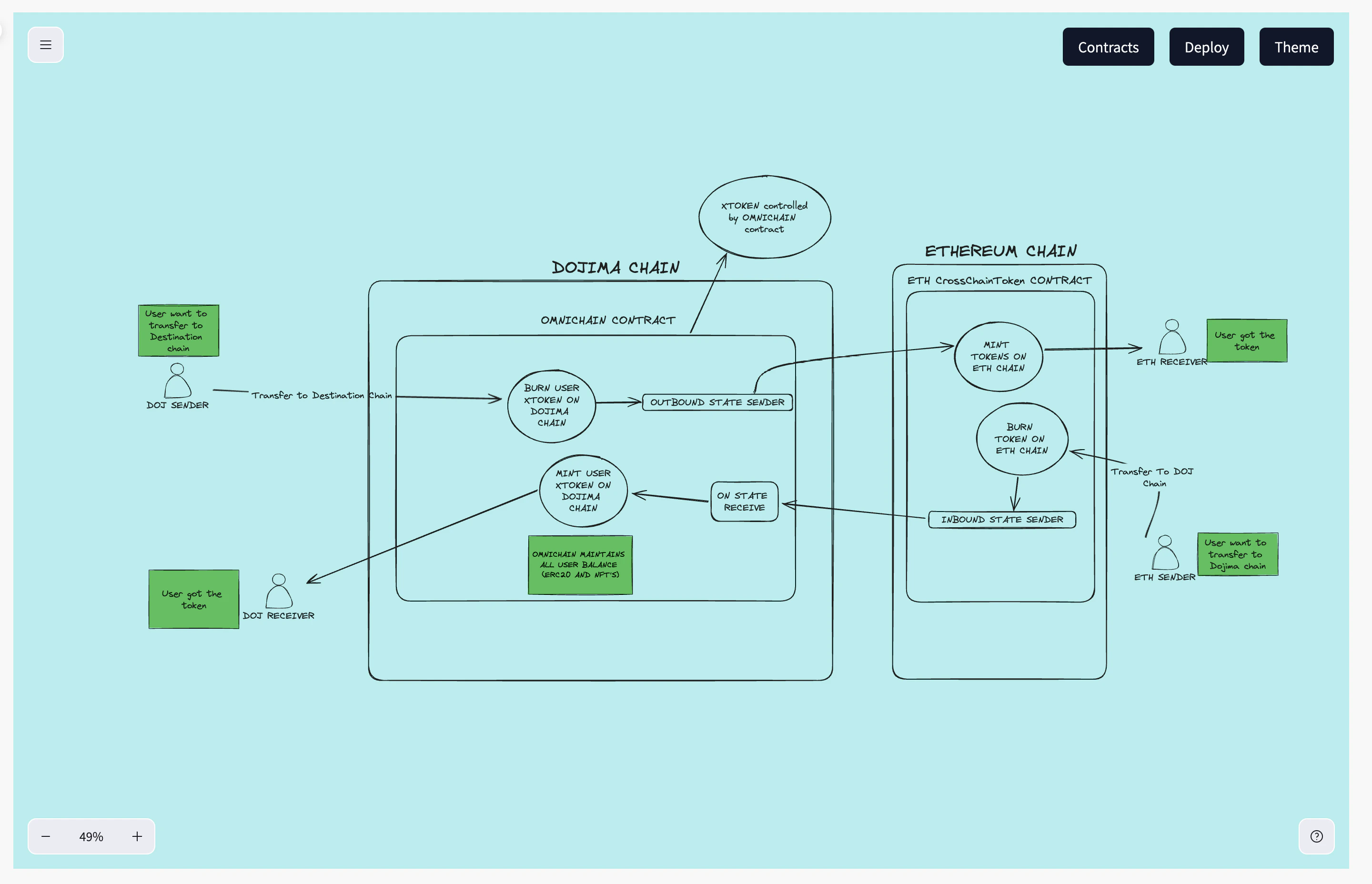
6. **Enable Deploy Button**
* After completing and saving all input details, the **Deploy** button is enabled at the top right.
5. **Complete All Steps**
* The user follows any remaining steps within the popup to complete the configuration.
* Once all steps are finalized, the user closes the popup.
6. **Enable Deploy Button**
* After completing and saving all input details, the **Deploy** button is enabled at the top right.
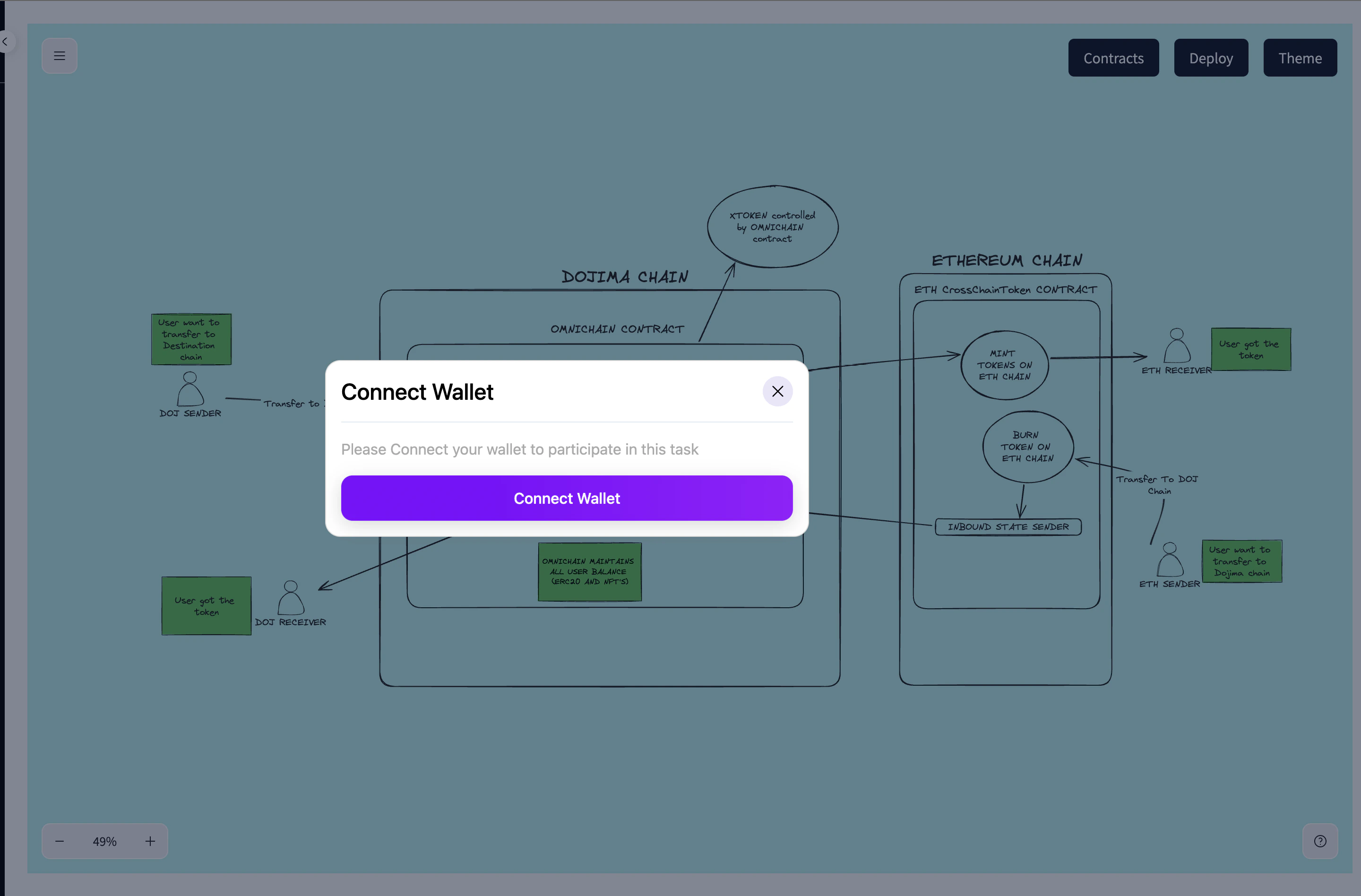
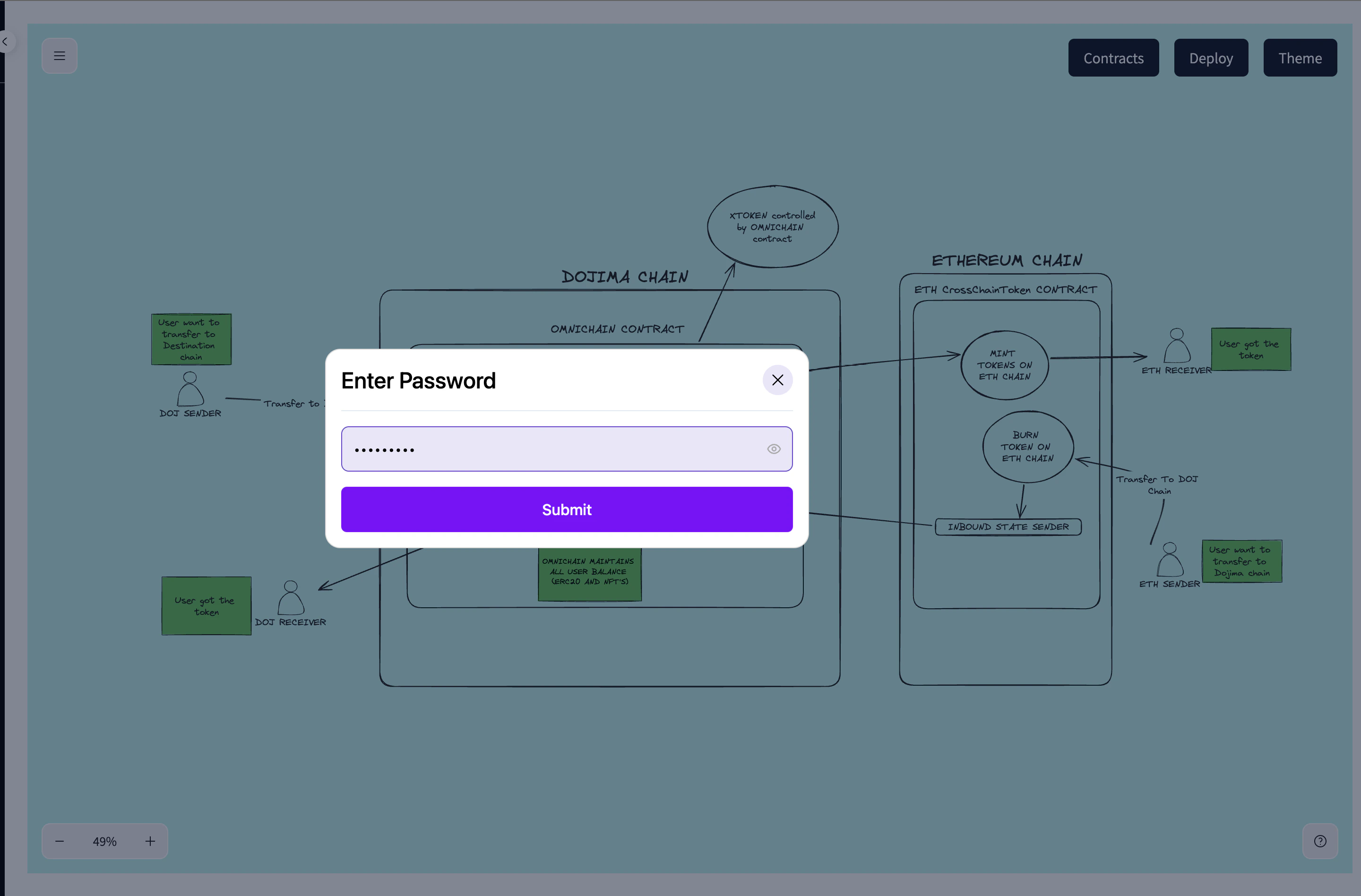
 7. **Deploy the Project**
* To deploy the project, the user clicks on the **Deploy** button.
* The system prompts the user to connect to the [Dojima Wallet](https://chromewebstore.google.com/detail/dojima-wallet/bmcnjpgbhlegnmpmphhfealchlfifepj?hl=en-GB\&utm_source=ext_sidebar) to complete the deployment process.
7. **Deploy the Project**
* To deploy the project, the user clicks on the **Deploy** button.
* The system prompts the user to connect to the [Dojima Wallet](https://chromewebstore.google.com/detail/dojima-wallet/bmcnjpgbhlegnmpmphhfealchlfifepj?hl=en-GB\&utm_source=ext_sidebar) to complete the deployment process.
 8. **Preview**
* To deploy the project, Accounts should maintain minimum balance of 0.2.
8. **Preview**
* To deploy the project, Accounts should maintain minimum balance of 0.2.
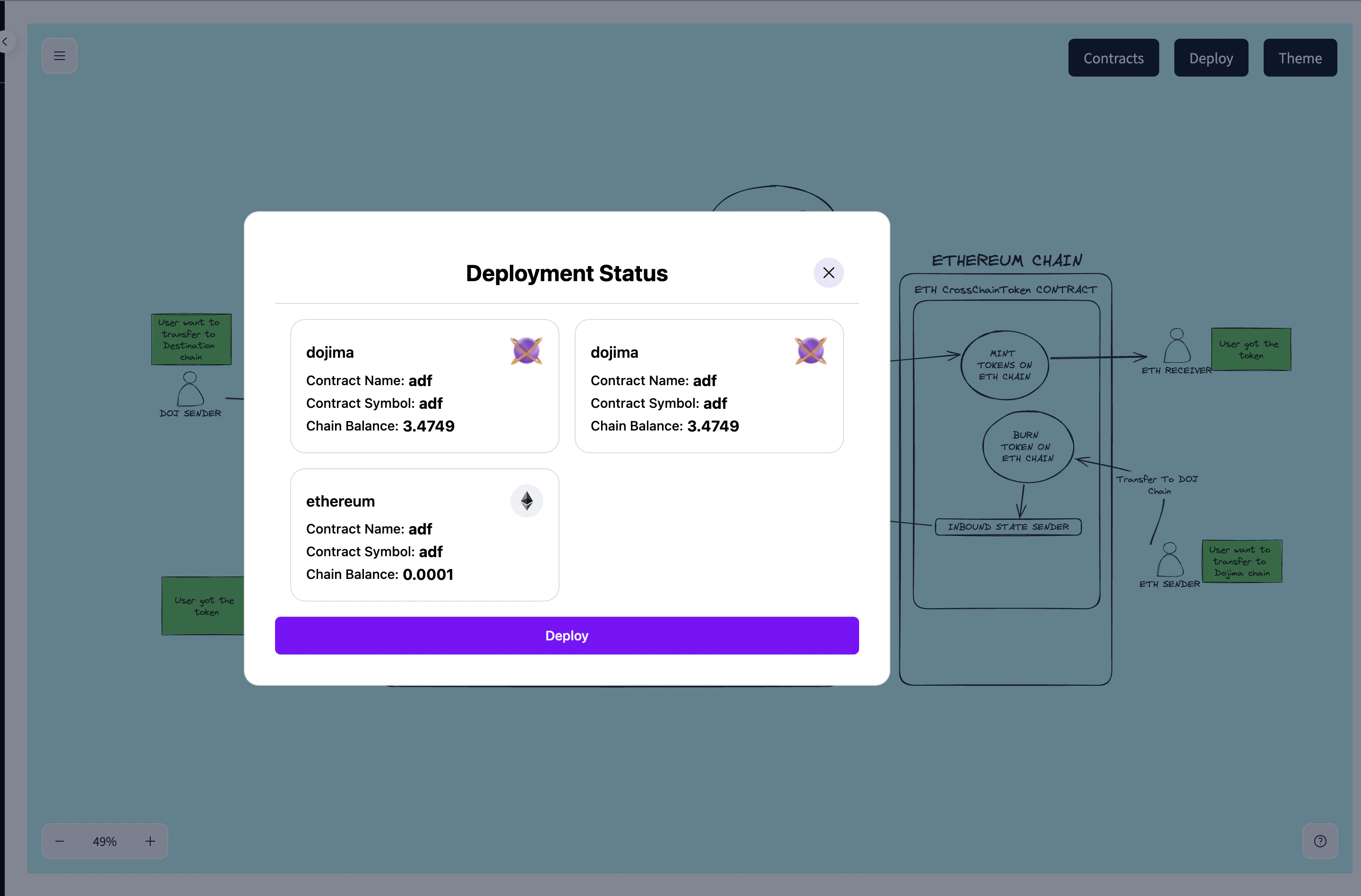
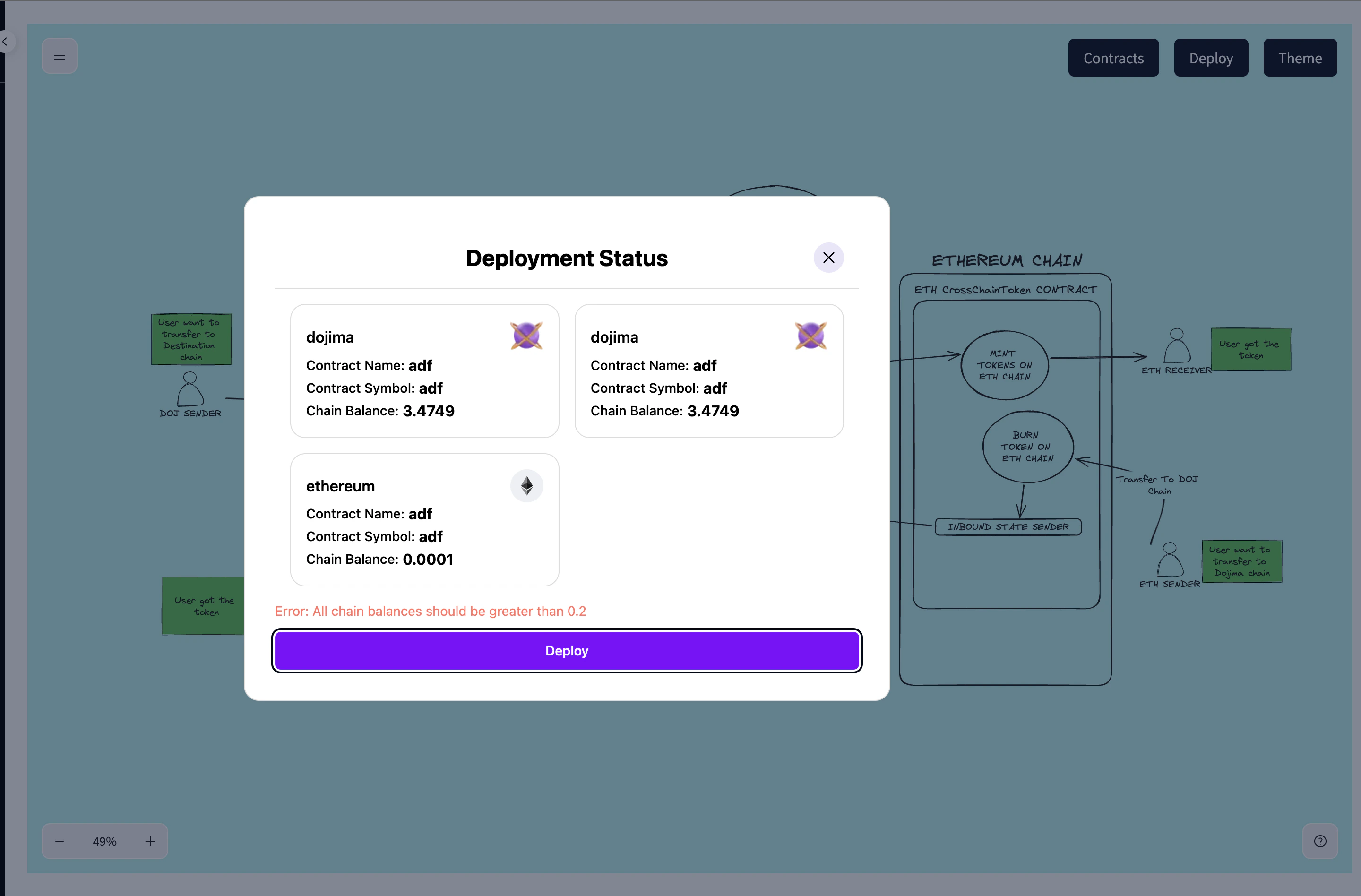 * Review the details and proceed to deployment.
 ***
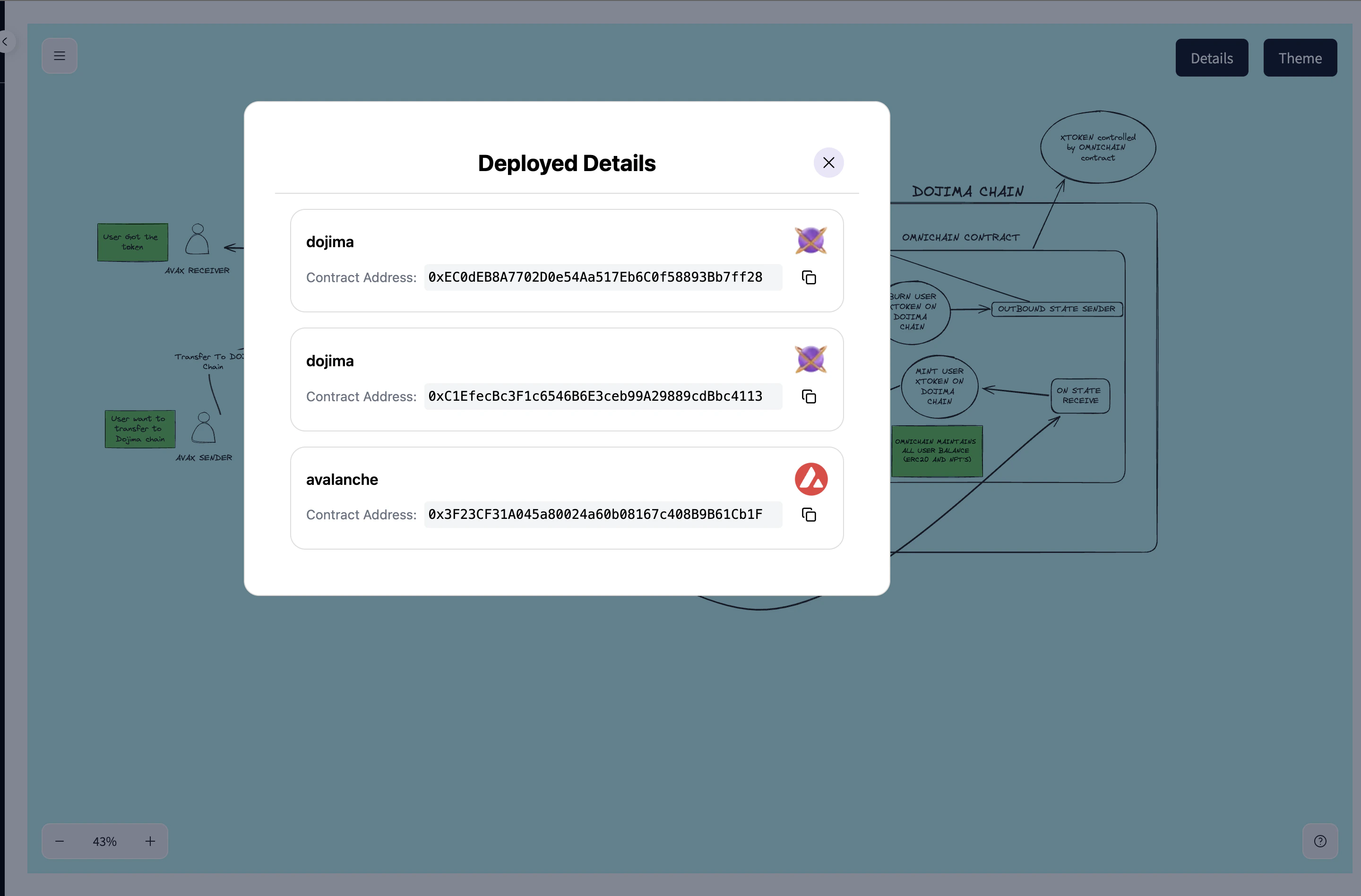
After the deployment of the project head over to the **projects** section and select the deployed project and head to details to see the project details.
***
After the deployment of the project head over to the **projects** section and select the deployed project and head to details to see the project details.